
Setting up ExpressVPN on Apple TV can get confusing when one guide tells you to download an app and another sends you into your router settings. The instructions may be aimed at different generations of hardware, or they may predate Apple’s support for VPN apps.
This guide will help you identify your Apple TV, install ExpressVPN where the app is supported, and weigh the alternatives for older boxes. It also covers what to check when the connection works but your streaming app doesn’t.
Which Apple TV models can use the ExpressVPN app?
Apple TV HD and Apple TV 4K models can use ExpressVPN directly when they’re running tvOS 17 or later. That includes the first-generation Apple TV 4K. An older purchase date doesn’t automatically mean you need a workaround.
If you’re unsure which box you own, find its model number under Settings > General > About or on the label underneath the box, then check the table below. Don’t confuse an Apple TV 4K generation number with the older Apple TV product generations.
| Your Apple TV | Setup to consider | What to check first |
|---|---|---|
| Apple TV HD (A1625) | Install the ExpressVPN app | Update to tvOS 17 or later |
| Apple TV 4K (A1842, A2169, A2737, or A2843) | Install the ExpressVPN app | Update to tvOS 17 or later |
| Older Apple TV models that cannot run tvOS 17 | VPN router, shared Windows VPN connection, or MediaStreamer | Whether you need VPN privacy and whether the streaming service still supports the box |
This article concerns the separate Apple TV hardware connected to your television. Having the Apple TV app on a smart TV doesn’t give that television access to tvOS apps.
How to set up ExpressVPN on Apple TV HD or 4K
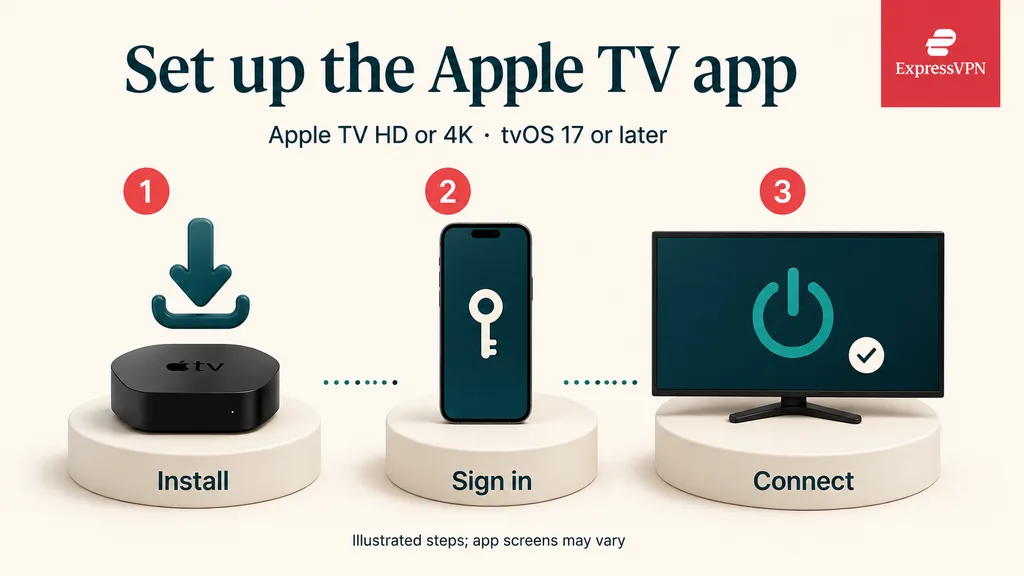
Have your ExpressVPN account details ready. Access to the VPN requires an active subscription; downloading the app alone doesn’t activate the service. If you haven’t subscribed, check ExpressVPN’s current plans and offers. For our testing from mainland China and broader discussion of the service, see our ExpressVPN review and China test results.
» Get ExpressVPN (4 month free)
Before installing, check for an Apple TV software update: open Settings > System > Software Updates > Update Software. Install an available update and leave the box connected to power until it finishes.
To install ExpressVPN and connect on tvOS:
- Open the App Store on Apple TV, search for ExpressVPN, and download it.
- Launch the app and choose Sign In. Scan the QR code with your phone and complete the authentication prompts. You can also sign in with email, or restore an eligible App Store purchase.
- Work through the setup screens. When tvOS asks permission to add VPN configurations, choose Allow. Select your preferences for the optional protection and analytics settings.
- Use the connection button to connect to the suggested server. Wait for the app to confirm the connection before opening your streaming app.
To choose another location, open Selected Location, browse or search for a country, and select a city where available. You can save frequently used locations as favorites. To disconnect, return to ExpressVPN and use the connection button again.
Once setup is complete, try the streaming app you normally use. Confirming that both the VPN and playback work gives you a useful starting point before changing more settings.
Using a VPN router with an older Apple TV
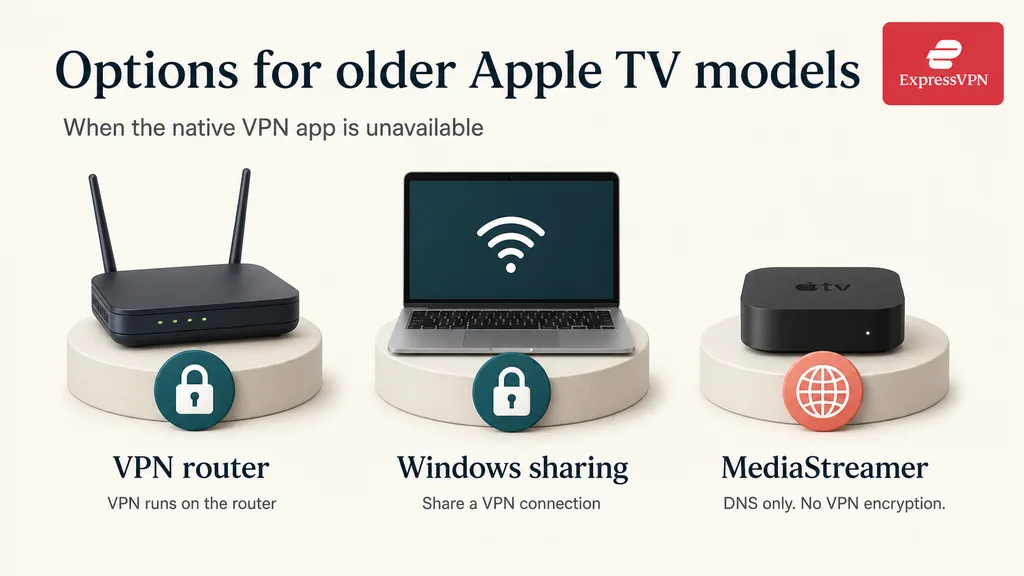
A VPN router handles the VPN connection for the Apple TV. The box joins the router’s network as it normally would, while the router sends its internet traffic through ExpressVPN.
This is the route I’d consider first for regular use on an older box when VPN privacy matters. It avoids keeping a computer running beside the TV, although you may need compatible hardware and more initial setup.
With ExpressVPN Aircove, connect the router to your internet connection, complete its browser-based setup, and sign in to ExpressVPN. Then connect your Apple TV to that router’s Wi-Fi or Ethernet network and make sure the VPN is active for the device.
If you want to use a router you already own, check your exact model and hardware version using the information on ExpressVPN’s router page. Don’t assume that a router mentioning “VPN” supports the configuration you need; the available instructions differ by model.
Pay attention to which network the Apple TV joins. If it stays connected to your original router while the VPN runs on a separate Aircove, it may bypass that VPN connection.
For an example of the router-app approach, read our earlier ExpressVPN router review, based on a Linksys WRT1200AC test. Its hardware details and screenshots describe that older setup; use the current compatibility information when choosing equipment today.
MediaStreamer: a streaming option with different tradeoffs
MediaStreamer is ExpressVPN’s smart DNS service. DNS helps devices find internet services, and MediaStreamer uses that part of the connection to support access to certain streaming services.
MediaStreamer doesn’t encrypt your traffic and doesn’t let you choose VPN server locations. Consider it for streaming compatibility on a device without a VPN app, rather than for the privacy of a VPN tunnel. If your HD or 4K box can run the native app, that is generally the more useful choice.
Register your connection before changing DNS
On a phone or computer connected to the same home network as your Apple TV, sign in to your ExpressVPN account. For this registration step, disconnect any VPN or proxy on that device so you’re registering the home connection.
Open ExpressVPN > DNS Settings, register your IP address, and enable automatic IP registration. Then find MediaStreamer in the setup options and note the DNS server address shown in your account. Use those account instructions rather than copying an address from an old article.
There’s a detail that’s easy to miss: automatic registration still needs an occasional trigger, such as signing in to your account from that network. If your home IP address changes, the registration needs to follow it.
Enter the DNS address on your Apple TV
For an older box with the General settings menu, use this sequence:
- Open Settings > General > Network.
- Select the active Wi-Fi or Ethernet connection.
- Open Configure DNS and note the existing setting before choosing Manual.
- Enter the MediaStreamer DNS address from your account.
- Restart the box through Settings > General > Restart.
ExpressVPN also describes an iTunes Store location step for its US setup on older models. Check your model and account settings before changing the store location. A DNS change cannot restore a streaming app that no longer supports your hardware.
On Apple TV HD or 4K, the MediaStreamer menu path is different: open Settings > Network, select your active connection, and choose Configure DNS > Manual. After entering the address, restart through Settings > System > Restart. To undo the change, restore your previous DNS setting, usually Automatic, and restart.
Sharing ExpressVPN from a Windows PC
A Windows PC can provide a temporary alternative to buying a VPN router. It runs ExpressVPN and shares that connection through a Wi-Fi hotspot that the Apple TV joins.
There are two separate jobs here: creating the hotspot and configuring it to share the VPN adapter. Simply turning on a hotspot while a VPN app is installed doesn’t establish that the hotspot’s traffic uses the VPN.
Create the Windows mobile hotspot, enable Internet Connection Sharing on the ExpressVPN adapter, and select the hotspot as the destination. The menus vary by Windows version; search ExpressVPN’s Support Center for “How to share a VPN connection from your Windows device” if you need the illustrated steps. Once configured, connect ExpressVPN on the PC and join that hotspot from your Apple TV.
The PC needs to remain on, awake, and connected while you watch. That makes this practical for occasional use, but less convenient than a router for an everyday living-room setup.
For checks you can run on the PC, see our guide to testing a VPN’s IP address and speed. A result on the PC alone doesn’t confirm that the Apple TV’s traffic uses the shared VPN.
What to check when ExpressVPN isn’t working on Apple TV
The VPN won’t connect
First check whether your Apple TV has internet access with the VPN disconnected. If it doesn’t, troubleshoot the home connection before changing VPN settings.
If ordinary internet access works, check the App Store for an ExpressVPN update and try another recommended server. Keep a note of any error message so support can work from the actual problem.
The VPN connects, but a streaming service fails
A connected VPN doesn’t guarantee that every streaming service will play every title. You still need the relevant streaming subscription, and account-region requirements can also apply. For viewing through your home-region account, start with a server in your home country.
Close and reopen the streaming app after changing the VPN connection, then check whether the problem affects one service or everything you try. If only one service fails, search for that service in ExpressVPN’s Support Center or contact support with the error message. For buffering, compare playback with the VPN disconnected to help distinguish a VPN-related slowdown from a weak home connection.
If Netflix is your main reason for using a VPN, our Netflix VPN comparison discusses ExpressVPN alongside other options. Playback on your own device is still the useful check before committing to a longer subscription.
MediaStreamer worked before, then stopped
Check whether the IP address registered in your ExpressVPN account still matches your home connection. Revisit registration after switching networks or restarting a router that receives a different public IP address. Also confirm that the Apple TV still has the intended DNS address, then restart it.
Can you use AirPlay instead?
AirPlay can be convenient when you already have a video open on your iPhone or iPad. It lets you stream or mirror to an Apple TV, but some video apps don’t support the feature.
Using ExpressVPN on your phone also doesn’t install a VPN on the Apple TV or protect the box’s other apps. For regular viewing directly on the box, choose one of the Apple TV setup methods above rather than treating AirPlay as a replacement for device-wide VPN coverage.
Choose the setup you’ll want to keep using
Start with your Apple TV model and software version. If it supports the ExpressVPN app, direct installation keeps everyday connection changes on the TV itself.
» Get ExpressVPN (4 month free)
For an older box, a compatible VPN router makes more sense when you want ongoing VPN protection. MediaStreamer serves a narrower streaming need, while Windows sharing suits occasional use. Before spending money on extra hardware, check that your preferred streaming apps still work on the Apple TV you own.
If you’re ready to set it up, view ExpressVPN’s current subscription options and check the upfront payment and renewal terms before choosing a plan.